
Updated: 26 August 2026
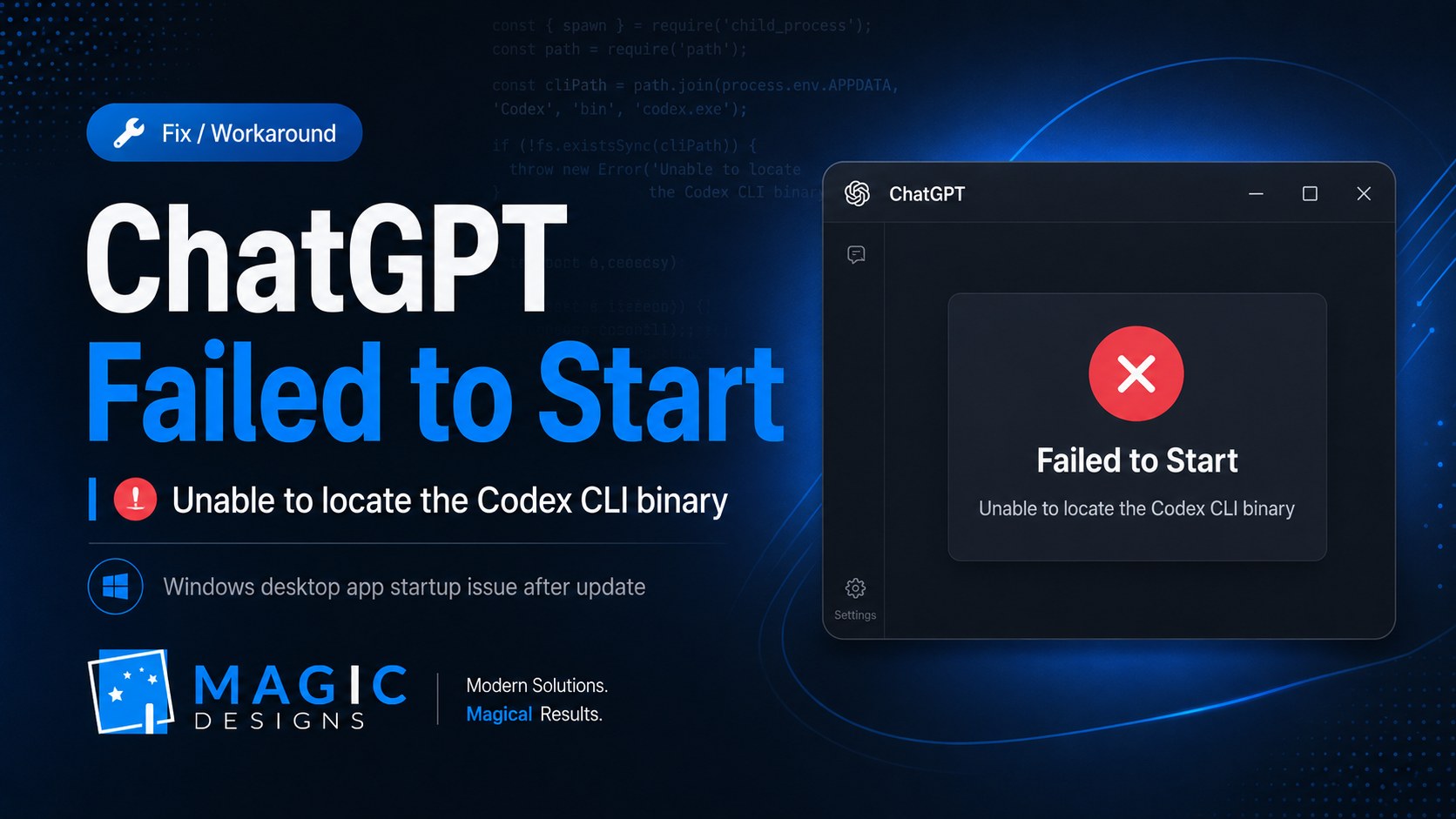
If you opened the ChatGPT desktop app on Windows today and were suddenly greeted with “ChatGPT failed to start” or “Unable to locate the Codex CLI binary”, you are not necessarily dealing with a damaged Windows installation or something you have changed yourself.
A number of users are encountering an error stating:
Unable to locate the Codex CLI binary. Set CODEX_CLI_PATH or ensure the Electron resources include bin/codex.
The issue has appeared following an update to the newer ChatGPT desktop experience that combines ChatGPT, Work and Codex within the same desktop application.
A public bug report opened in OpenAI's Codex GitHub repository on 26 August 2026 describes the same startup failure on Windows 11 x64 using desktop version 26.820.60940. The report remains open at the time of writing.
The good news is that there is currently a practical workaround.
This guide explains what the error means, how to locate or install the required Codex executable, how to configure CODEX_CLI_PATH, and what to do if your attempted fix produces a secondary spawn EINVAL error.
Quick Fix: What You Need to Do
If you want the short version first, the current workaround is:
- Check whether another ChatGPT desktop update is available.
- Install the official Codex CLI if you do not already have it.
- Find the actual Windows
codex.exeexecutable. - Test that the executable works.
- Set the Windows
CODEX_CLI_PATHenvironment variable to that.exe. - Fully close and restart ChatGPT.
The important part is that CODEX_CLI_PATH should point to:
codex.exeand not:
codex.cmdPointing the desktop application at the .cmd wrapper is associated with another Windows error:
spawn EINVALWe'll explain exactly how to avoid that below.
What Is the “Unable to Locate the Codex CLI Binary” Error?
The current ChatGPT desktop application is more than just the traditional ChatGPT chat interface.
OpenAI's newer desktop application brings Chat, Work and Codex together on Windows and macOS. Existing Codex desktop users are also being migrated towards this unified application.
Codex is OpenAI's software-development environment and can interact with local:
- repositories
- folders
- terminals
- development tools
- source code
To provide that functionality locally, the desktop application needs access to the Codex command-line executable.
On Windows, that executable is:
codex.exeThe startup message therefore effectively means:
The ChatGPT desktop interface has launched, but it cannot find the Codex executable it expects to use.
That is why you see a ChatGPT-branded error window referring to something called the Codex CLI binary.
Why Has ChatGPT Suddenly Stopped Opening?
At the moment, the strongest evidence points towards a desktop application update issue rather than something users have intentionally changed.
The GitHub report submitted on 26 August 2026 specifically lists:
Version: 26.820.60940
Platform: Windows 11 x64
with the startup error:
Unable to locate the Codex CLI binary.
Set CODEX_CLI_PATH or ensure the Electron resources include bin/codex.
The reporter states that the application stopped launching after updating to this version.
It is worth being precise here: this is currently a publicly reported bug, rather than an official statement from OpenAI confirming that every installation of this version is affected.
However, if ChatGPT worked normally before updating and immediately started producing the exact error above afterwards, your symptoms closely match the current report.
Step 1: Check for a ChatGPT Update First
Before changing anything manually, use the simplest option.
If the error window provides a:
Check for Updates
button, click it.
Because the issue appears to be related to an application update, OpenAI may release another desktop build that corrects the problem.
If another version is available:
- Install the update.
- Completely close ChatGPT.
- Reopen the application.
If it still displays the Codex CLI error, continue with the workaround below.
Step 2: Open PowerShell
Open the Windows Start menu and search for:
PowerShellLaunch Windows PowerShell or the newer PowerShell application.
For this fix, you should not need to delete your development projects, repositories or existing Codex conversations.
We are simply going to make sure a valid Codex executable exists and then tell the desktop application where to find it.
Step 3: Install the Official Codex CLI
OpenAI provides an official standalone installer for Codex on Windows.
Run the following command in PowerShell:
powershell -ExecutionPolicy ByPass -c "irm https://chatgpt.com/codex/install.ps1 | iex"This is the installation command currently documented in OpenAI's official Codex repository.
The standalone installer downloads the relevant Windows Codex package and installs the native executable locally.
Let the installation complete before continuing.
Step 4: Check That Codex Works
Once the installation has finished, close PowerShell and open a new PowerShell window.
Run:
codex --versionIf everything is working, PowerShell should return a Codex version number.
That confirms that the Codex CLI itself is installed and executable.
OpenAI's own Windows installer performs a similar validation by launching the installed codex.exe with the --version argument.
Step 5: Find the Actual codex.exe File
This is the most important part of the fix.
The ChatGPT desktop application needs the actual Windows executable rather than simply a command wrapper.
The current official Windows installer uses the following default visible installation directory:
%LOCALAPPDATA%ProgramsOpenAICodexbinOpenAI's installer source explicitly defines this location and verifies a codex.exe contained inside it.
Try this PowerShell command:
Get-ChildItem "$env:LOCALAPPDATAProgramsOpenAICodexbin" -Filter codex.exe -ErrorAction SilentlyContinue | Select-Object -ExpandProperty FullNameYou may receive something similar to:
C:UsersYourNameAppDataLocalProgramsOpenAICodexbincodex.exeYou can also search your Codex installation directory:
Get-ChildItem "$env:USERPROFILE.codex" -Filter codex.exe -Recurse -ErrorAction SilentlyContinue | Select-Object -ExpandProperty FullNameThe exact location can vary depending on the way Codex was previously installed.
The important thing is that the path finishes with:
codex.exeStep 6: Test the Native Codex Executable
Before changing any Windows settings, confirm that the executable you found actually works.
For example:
& "C:UsersYourNameAppDataLocalProgramsOpenAICodexbincodex.exe" --versionReplace the example path with the one found on your own computer.
If the executable returns a version number, you now have a valid codex.exe.
That is the file we want ChatGPT to use.
Step 7: Set CODEX_CLI_PATH
Now create a user environment variable telling ChatGPT exactly where the Codex CLI lives.
Run:
setx CODEX_CLI_PATH "C:FULLPATHTOcodex.exe"For example:
setx CODEX_CLI_PATH "C:UsersYourNameAppDataLocalProgramsOpenAICodexbincodex.exe"Do not copy the example username literally.
Use the exact path you found on your computer.
After running the command, Windows should confirm that the value was saved.
Step 8: Completely Close ChatGPT
Environment-variable changes are not necessarily picked up by applications that are already running.
So do not simply click the ChatGPT icon again.
Close ChatGPT completely.
If necessary:
- Press Ctrl + Shift + Esc.
- Open Task Manager.
- Find any remaining ChatGPT or Codex desktop processes.
- End them.
- Reopen ChatGPT.
The workaround described in the current GitHub report is to point CODEX_CLI_PATH directly to the native codex.exe, which allowed the affected application to launch successfully.
Getting “spawn EINVAL” After Trying the Fix?
This is where things can become confusing.
You may fix the original error only to receive:
spawn EINVALinstead.
This usually means CODEX_CLI_PATH has been pointed to the wrong type of executable.
If you have previously installed Codex through npm, Windows may provide something similar to:
C:UsersYourNameAppDataRoamingnpmcodex.cmdIt might look correct because typing:
codexinto PowerShell works.
But codex.cmd is a Windows command wrapper.
It is not the same thing as the native:
codex.exeThe current GitHub bug report states that setting CODEX_CLI_PATH to the .cmd wrapper can result in Electron/Node trying to spawn it directly and producing:
spawn EINVALPointing the variable to the underlying native .exe avoids that problem.
So:
Don't use
...codex.cmdUse
...codex.exeThat distinction is important.
How to Check Your Current CODEX_CLI_PATH
If you have already attempted the workaround and want to see what Windows currently has saved, run:
[Environment]::GetEnvironmentVariable("CODEX_CLI_PATH", "User")PowerShell should return something similar to:
C:UsersYourNameAppDataLocalProgramsOpenAICodexbincodex.exeYou can then check whether that file actually exists:
Test-Path ([Environment]::GetEnvironmentVariable("CODEX_CLI_PATH", "User"))If PowerShell returns:
Truethe file exists.
If it returns:
Falsethe environment variable is pointing to a file that Windows cannot find.
Find the correct codex.exe and update the variable again.
What If where codex Finds codex.cmd?
Another common troubleshooting command is:
where.exe codexThis can be useful, but be careful with the result.
If Windows returns:
C:UsersYourNameAppDataRoamingnpmcodex.cmdthat proves a Codex command exists on your PATH.
It does not necessarily mean that this is the file you should use for CODEX_CLI_PATH.
For the affected desktop app, you specifically want the underlying:
codex.exeIf you installed Codex using OpenAI's new standalone installer, checking:
%LOCALAPPDATA%ProgramsOpenAICodexbinis a good place to start.
Should You Reinstall ChatGPT?
You can, but it would not be my first step while the affected version remains current.
If the error is caused by the desktop app's installer or updater failing to correctly bundle or locate its Codex executable, reinstalling the same affected build may simply recreate the problem.
The public bug report itself suggests that the application installer/updater should ensure that the native codex.exe is correctly placed inside the application's resources.
That is why explicitly setting:
CODEX_CLI_PATHworks as a useful temporary workaround.
Instead of relying on ChatGPT to discover its own expected copy, you give it the exact location of a known working executable.
Should You Delete the .codex Folder?
Not as a first troubleshooting step.
The error specifically concerns the application being unable to locate its CLI executable.
Deleting everything under:
C:UsersYourName.codexis a much broader action than is necessary for this problem.
The folder can contain configuration and other locally stored Codex information.
A more sensible troubleshooting sequence is:
- Verify that
codex.exeexists. - Verify that it executes successfully.
- Point
CODEX_CLI_PATHto it. - Restart ChatGPT.
- Only investigate application-data resets if the targeted fix does not work.
Avoid deleting unrelated development data simply because the application refuses to launch.
Does This Affect ChatGPT in Your Browser?
This particular error relates to the desktop application and the local Codex executable.
ChatGPT's web interface does not rely on your Windows installation's local codex.exe in the same way.
OpenAI explains that Codex within the desktop app can work with local repositories, folders, terminals and developer tools, while the broader ChatGPT experience is also available separately through web and mobile interfaces.
So if you urgently need ordinary ChatGPT while troubleshooting the Windows application, using ChatGPT through your browser remains an option.
Local Codex development workflows are where the desktop issue becomes particularly inconvenient.
Why Does the Error Mention Codex When I Open ChatGPT?
This is likely to confuse many users.
The new ChatGPT desktop application brings several OpenAI experiences into one application:
- Chat – normal conversational ChatGPT
- Work – longer research and task workflows
- Codex – software development and local coding workflows
OpenAI states that users of the previous Codex desktop application can update into the newer unified ChatGPT desktop application while keeping their Codex projects and conversations.
So although the application's name is ChatGPT, part of its desktop architecture also includes Codex.
That is why a failure involving the local Codex executable can prevent the overall desktop application from starting correctly.
How to Remove the Workaround Later
CODEX_CLI_PATH should be viewed as a workaround rather than something you necessarily need to hard-code forever.
Once OpenAI releases an application version that correctly detects its own Codex binary again, you can remove the custom environment variable.
Run:
[Environment]::SetEnvironmentVariable("CODEX_CLI_PATH", $null, "User")Then completely close and reopen ChatGPT.
You can also check whether the variable has been removed by running:
[Environment]::GetEnvironmentVariable("CODEX_CLI_PATH", "User")If nothing is returned, the user-level variable has been removed.
Frequently Asked Questions
Is “Unable to locate the Codex CLI binary” a Windows problem?
The current public report concerns Windows 11 x64 and desktop version 26.820.60940.
That does not mean every Windows installation is affected, but Windows users experiencing the exact startup message are reporting the same behaviour.
Is version 26.820.60940 definitely broken?
There is currently an open bug report for that version describing this exact issue.
Until OpenAI confirms the root cause or ships a fix, it is more accurate to describe it as an affected/reported version rather than claiming the entire release is universally broken.
Is the Codex PowerShell installer safe?
The command used in this article is the Windows installation method currently documented in OpenAI's official openai/codex GitHub repository.
Do I need Node.js or npm?
Not if you use OpenAI's standalone Windows installer.
Codex can also be installed using npm, but the standalone installation method is particularly useful for this workaround because it provides a native Windows codex.exe.
Why shouldn't I use codex.cmd?
Because the affected desktop application may attempt to execute that batch wrapper directly.
The current bug report documents this producing:
spawn EINVALUsing the underlying native codex.exe bypasses the problem.
Will setting CODEX_CLI_PATH damage anything?
Setting the variable simply tells software where the Codex CLI executable is located.
You are not replacing Windows system files or deleting your development projects.
The important part is making sure the path points to the correct executable.
Do I need to restart Windows?
Usually, completely restarting ChatGPT after setting the environment variable should be sufficient.
If ChatGPT continues to behave as if the environment variable does not exist, restarting Windows is a reasonable additional troubleshooting step.
Final Fix Checklist
If you're seeing:
ChatGPT failed to start
Unable to locate the Codex CLI binary
work through the following:
- Check for another ChatGPT desktop update.
- Open PowerShell.
- Install the official Codex CLI.
- Run
codex --version. - Find your native
codex.exe. - Test the
.exedirectly. - Set
CODEX_CLI_PATHto the full.exepath. - Make sure the path does not end in
codex.cmd. - Completely close ChatGPT.
- Reopen the desktop application.
- If you receive
spawn EINVAL, check that you are using the native.exe.
Final Thoughts
A desktop application suddenly refusing to launch can make this error look much more serious than it probably is.
As of 26 August 2026, the available evidence suggests that at least some Windows users are experiencing a desktop update problem where the application cannot locate the Codex executable it expects to use.
The current workaround is relatively clean:
Install or locate a working native codex.exe, set CODEX_CLI_PATH to that executable and restart ChatGPT.
The key detail is to point the environment variable to the actual .exe, rather than an npm codex.cmd wrapper.
Because the GitHub issue is still open, the situation may change quickly. If OpenAI releases a corrected desktop build, installing the update should eventually be preferable to relying on a manual environment-variable workaround.
Magic Designs will update this guide if a confirmed desktop fix or additional official guidance becomes available.